AI Features
Phlox includes several AI-powered features: a queryable knowledge base, an agentic tool-calling assistant, structured citations, downloadable artifacts, chart insights, and adaptive refinement.
Reference Chat
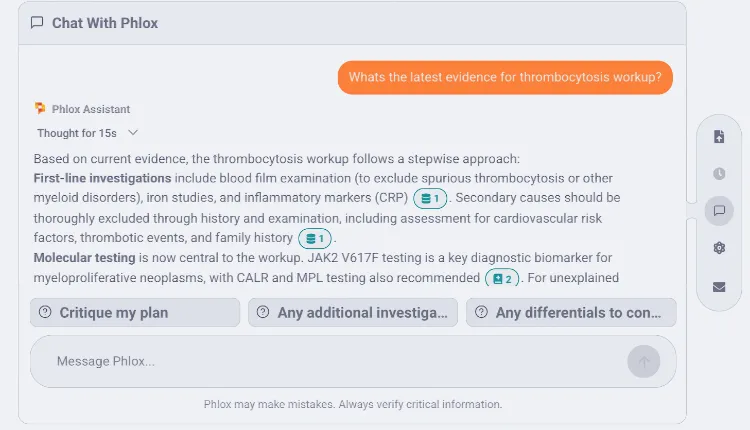
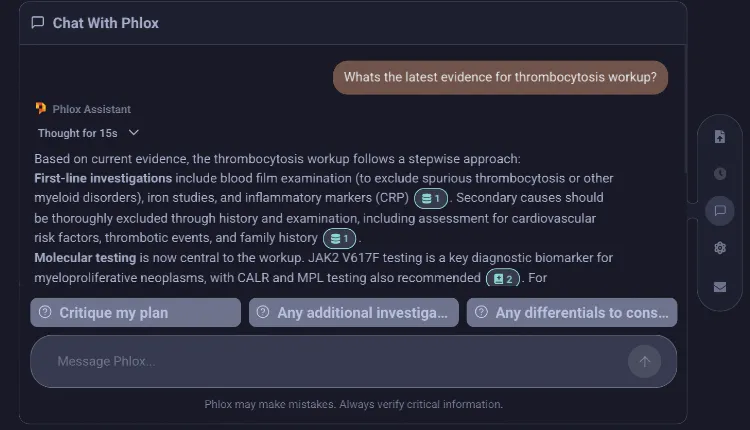
From a patient encounter, the chat can reference that patient's note and transcript and ground answers in your knowledge base. Open the Chat button in the Floating Action Menu, ask reference questions, and the LLM — backed by RAG where useful — responds with inline citations.
Agentic Tool-Calling
The chat interface includes a built-in tool-calling system that lets the AI take actions on your behalf. It performs multiple rounds of interleaved thinking and tool-calling (up to 10 iterations) — for example, searching notes, finding a patient, then listing their outstanding jobs — before producing a final response.
Built-in Tools
Each tool can be toggled in Settings → Tools. Tools that call external services ship disabled by default.
| Tool | What it does | Default |
|---|---|---|
transcript_search | Search the current patient's transcript | Enabled (chat-only) |
get_relevant_literature | Literature Search (RAG over your knowledge base) | Enabled¹ |
search_patient_notes | Search a patient's historical notes | Enabled |
get_previous_encounter | Retrieve a patient's most recent previous encounter | Enabled |
search_patient | Find a patient by name, UR, DOB, or date | Enabled |
search_patients_by_condition | Cohort search by primary condition (fuzzy name) | Enabled |
get_patient_jobs | List a patient's outstanding jobs | Enabled |
list_outstanding_jobs | List all patients with incomplete jobs | Enabled |
complete_job | Mark a specific job as completed | Enabled |
create_note | Create a new patient encounter note | Enabled |
todo_list | Manage the workspace to-do list (list/add/complete/delete) | Enabled |
list_pdf_form_templates | List available PDF form templates | Enabled |
fill_pdf_form | Produce a form-fill artifact for a PDF form | Enabled |
direct_response | Handle non-medical / general conversation | Enabled (chat-only) |
pubmed_search | Search PubMed | ⚠️ Disabled (external — may transmit PHI) |
wiki_search | Look up terms on Wikipedia | ⚠️ Disabled (external — may transmit PHI) |
¹ Literature Search queries your knowledge base and is auto-hidden until it has at least one collection.
transcript_search and direct_response are chat-only (excluded from the Chart Insights agent).
The same tool registry — including connected MCP servers — powers the live agent, which adds session tools for drafting the note in real time, staging artifacts, and curating the wrap-up job list by voice.
MCP Server Integration
Connect external tool servers via the Model Context Protocol (SSE transport):
- Go to Settings → Tools → Tool Servers.
- Add a server with a name and HTTP URL.
- Toggle it on/off and configure PHI filtering.
- Tools from connected servers appear automatically in chat, namespaced as
mcp_<server>_<tool>.
When the per-server Allow sensitive data toggle is off (the default), Phlox strips patient-identifying information from arguments before calling the server. See Security → Tool & MCP data safety.
Thinking Trace
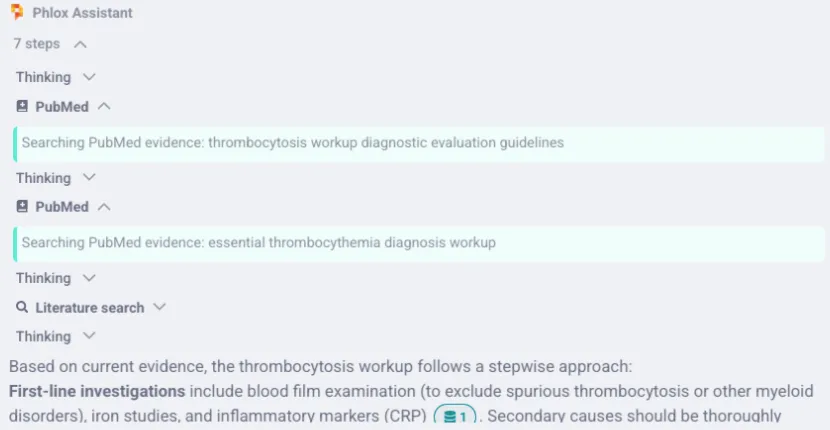
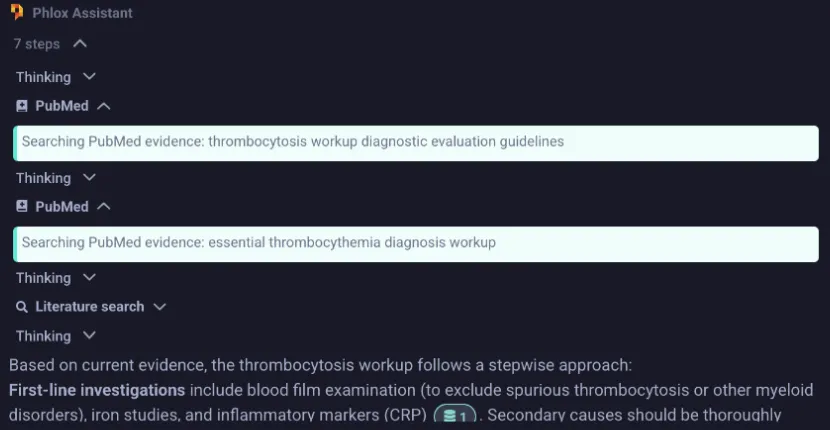
Tool-calling turns are shown as a collapsible activity trace with per-step cards: iterations, tool calls, tool results, pre-tool reasoning, and final reasoning, each with an elapsed-time label (e.g. "Thought for 12s"). Reasoning tokens are wrapped in <think> blocks.
Citations
When a response relies on tool output (literature search, PubMed, Wikipedia, etc.), Phlox attaches structured citations. They appear as inline numbered pills (with popovers) and a collapsible sources footer. Citation numbers are renumbered contiguously across a multi-tool turn so they read cleanly.
Artifacts
Some tool responses return artifacts you can act on:
- Binary artifacts — shown as downloadable cards.
- Form-fill artifacts — the agent fills a PDF form from encounter data; the card lets you apply the fill client-side and download the result. See PDF Forms.
Chart Insights
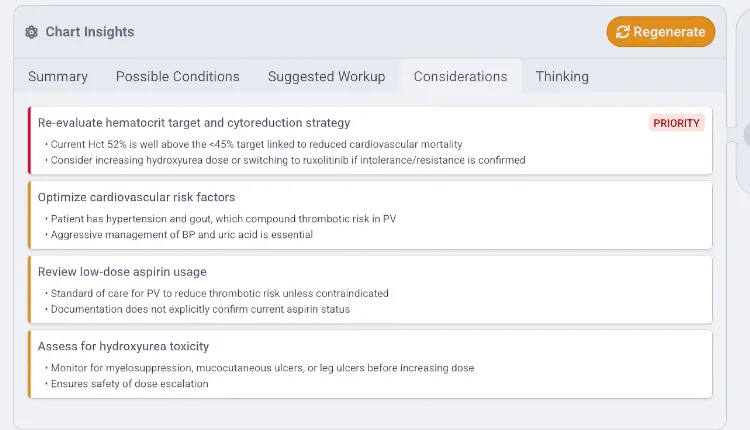
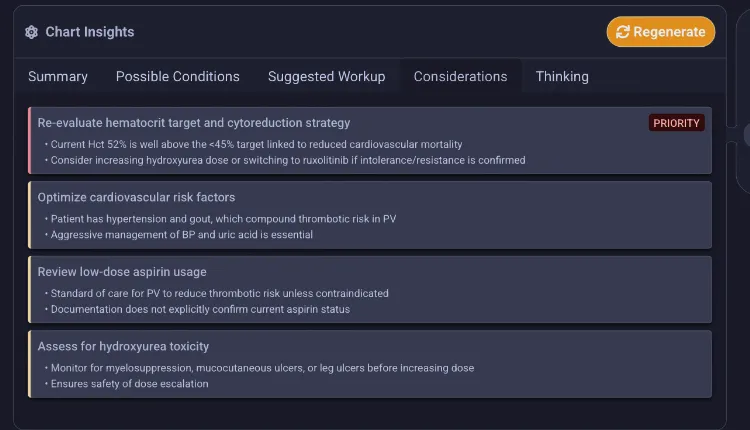
Chart Insights generates an educational peer-review and literature correlation for the current encounter — a dynamic "curbside consult" to broaden your consideration set, not a diagnostic tool. After saving the encounter, open the Chart Insights button in the Floating Action Menu. Results are presented across five tabs:
- Summary — a brief synthesis of the documented encounter.
- Possible Conditions (differentials) — conditions commonly associated with the documented symptoms.
- Suggested Workup (investigations) — typical investigations for the correlated conditions.
- Considerations (documentation QA) — potential gaps or "red flags" to address explicitly in the note.
- Thinking — the parsed reasoning trace (collapsible iteration / tool / reasoning cards).
Items flagged critical are badged and surface as a red dot on the encounter's Chart Insights button.
Chart Insights is strictly an educational and documentation-quality tool. It is not a diagnostic tool and does not provide clinical decision support.
Adaptive Refinement
Adaptive Refinement is how Phlox learns your documentation style. It runs automatically in the background — there is no toggle and no separate UI for it.
How it works
- Snapshot at transcription time. When a fresh transcription produces note fields, Phlox stashes a copy of what the AI generated. (Restored or reprocessed transcripts are not snapshotted — only the first transcription after starting or editing an encounter.)
- You edit the note. As you refine the generated fields in the Summary panel, your edits are tracked.
- Diff at save time. When you click Save Encounter or finish via Wrap Up → Confirm & Finish, Phlox compares each template field's original AI output against your edited version. Only fields where both versions exist and the change exceeds a Levenshtein-based change-ratio threshold (0.4 — smaller edits are ignored) produce a signal.
- The server learns. For each changed field, the before/after text is sent to the LLM, which issues a single instruction update (
replace/modify/add/keep_unchanged). These instructions are attached to the template field and steer future generations toward your style. - Consolidation. Per-field instructions are consolidated automatically once they reach a maximum (8). They are managed automatically and aren't shown in the UI.
Notes
- Only fields the AI populated can produce a refinement signal — fields it left empty that you later filled are excluded.
- Only fields defined in the template are diffed.
- The snapshot is taken once per transcription and reset after a successful save.
- Adaptive refinement is always on; there is no settings toggle.