Settings
Phlox is configured almost entirely through the in-app Settings page. Configuration lives in the encrypted database (not in files), so changes persist with your data. Most settings autosave.
Settings is divided into two top-level panels: User Settings (per user) and Admin Settings, which is only visible to admins — global model endpoints, system prompts, and policies are admin-only writes (see Users & Authentication). On the single-user desktop app you are always the admin, so everything shows.
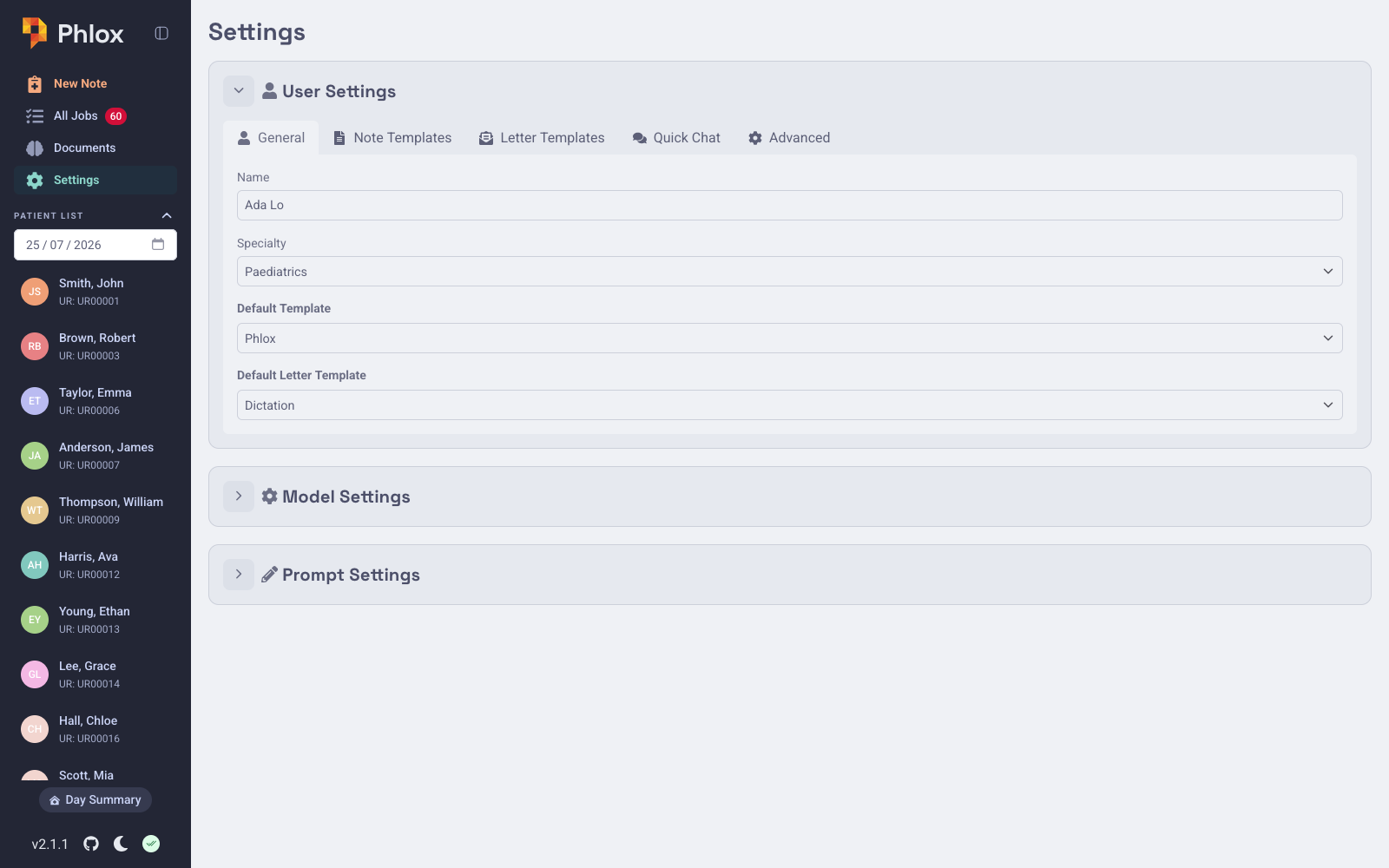
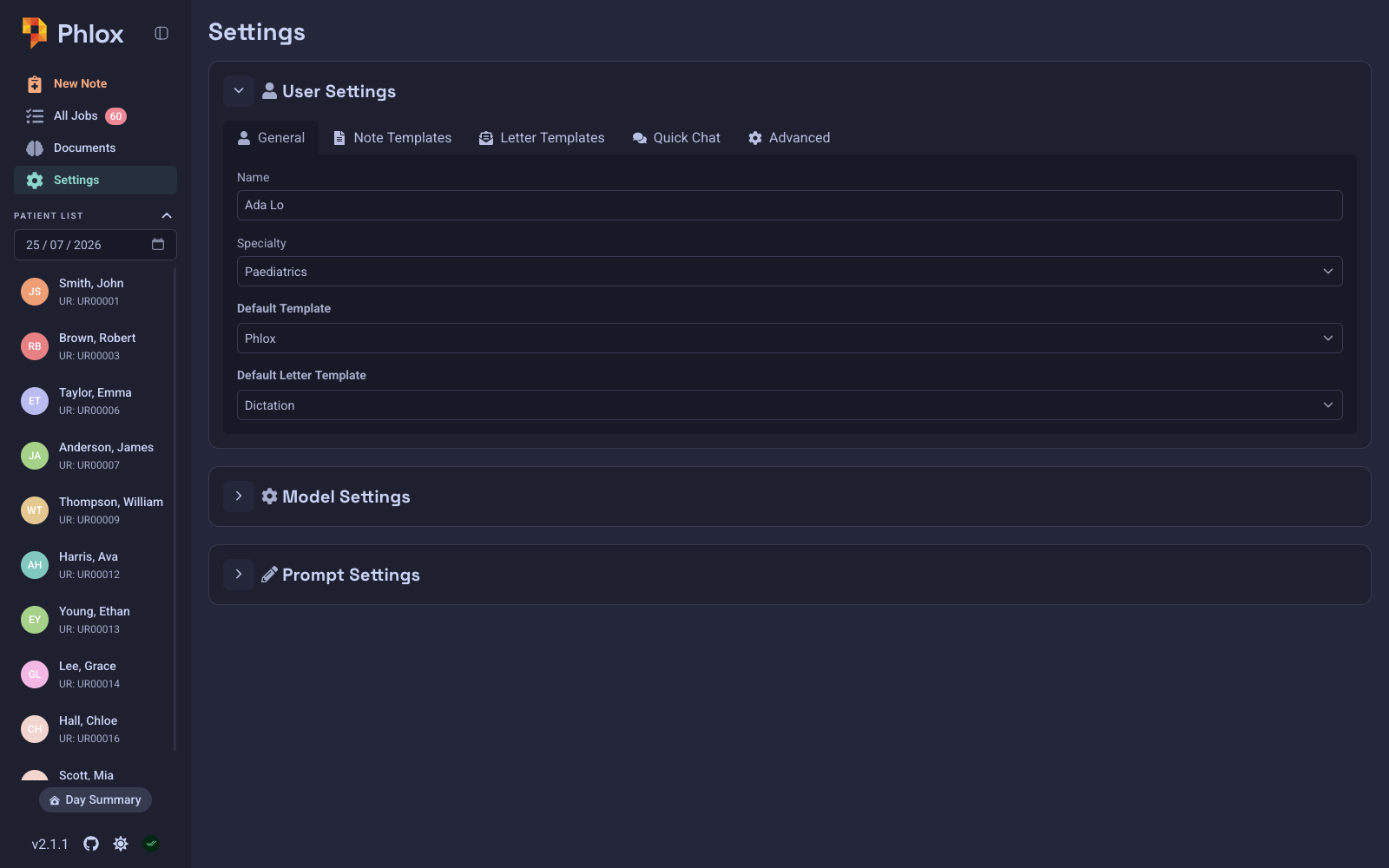
User Settings
| Tab | What you configure |
|---|---|
| General | Your name and specialty (provided as context to the LLM and used for specialty-aware suggestions); your default note template and default letter template; your preferred language (per user — see Language Support). |
| Note Templates | Create, edit, and delete note templates. |
| Letter Templates | Manage correspondence templates, including the protected "Dictation" template. |
| Quick Chat | Configure up to three quick-chat buttons (label + prompt) shown in the chat surfaces. |
Language
The General tab also sets your preferred language — a per-user setting that drives transcription, note/letter/chat output, and date formatting. On desktop, selecting a non-English language offers to download a multilingual transcription model (available once the language appears in the selector). See Language Support for details and limitations.
Admin Settings
The Admin Settings panel (formerly "Model Settings") contains the model configuration and the Users tab; it is only visible to admins. It behaves differently depending on whether you run a desktop (Tauri) build or a Docker/web build.
Users
Admin-only. Create user accounts (admin or clinician), reset passwords, and disable accounts. See Users & Authentication.
Local mode (desktop only)
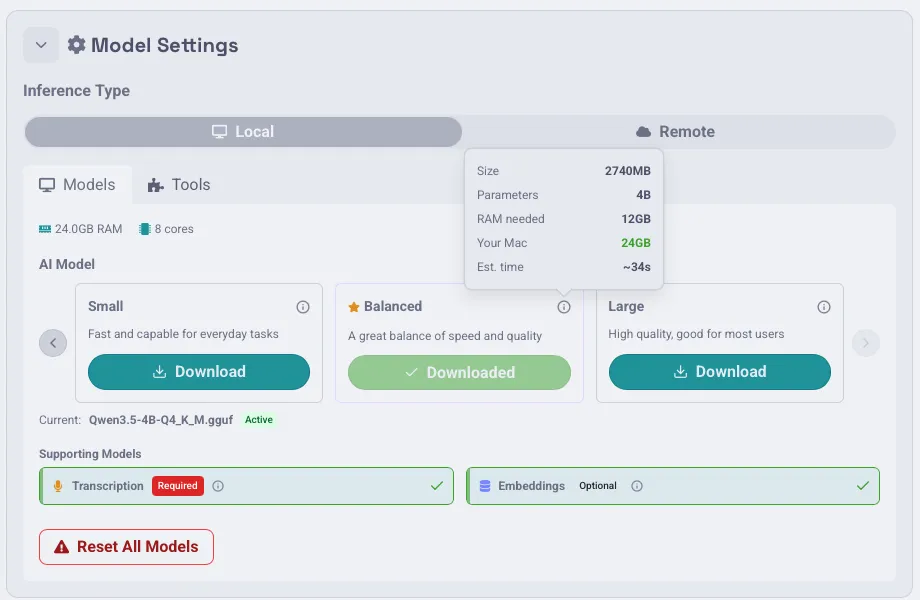
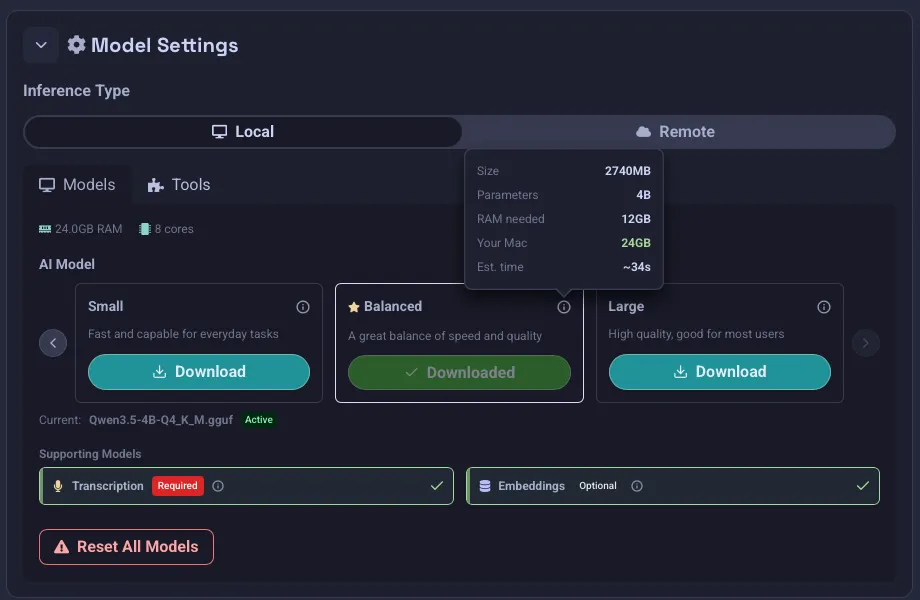
On desktop you can run inference locally. The panel toggles between Local and Remote inference.
- Models tab — download and manage the bundled models: the primary AI model (with smart recommendations based on your RAM/cores, plus an estimated processing time), the transcription model (Omi Med STT v1), and the optional embeddings model (Qwen3-Embedding) used for RAG. A system-specs banner shows your available RAM and CPU cores, and a "Reset All Models" action is available.
- Chat / Summary tabs — the system prompt editors.
- Tools tab — see Tools below.
Remote mode
When using external endpoints (required for Docker; optional on desktop):
- Whisper tab — transcription API base URL, model name, and API key. A live status indicator shows endpoint reachability.
- LLM tab — OpenAI-compatible / Ollama base URL, API key, primary model, secondary model, the document/image processing mode, a vision capability probe, and Letter Generation Temperature (0–2, default 0.6 — the sampling temperature used when generating letters; higher values produce more varied writing, with a reset-to-default).
- RAG tab — choose the embedding model. Changing it triggers a re-embedding pass across all document collections, with a progress indicator.
- Tools tab — see Tools below.
Policy
Practice-level system policy, applied to every user:
- Store Original PDFs — keep uploaded PDF binaries in the database (increases storage usage).
- Require patient consent for ambient scribing — prompt for the patient's consent before any consultation recording (Ambient or Live agent). Consent is remembered per patient. See Patients → Ambient Scribe Consent.
- Streaming capture — transcribe Ambient and Dictate recordings utterance-by-utterance while recording, with speaker labels from Phlox itself, so the note is ready faster at stop. Docker-only setting (always on in the desktop app); see Streaming capture.
- Prompt cache warming — pre-warm the note-generation prompt with the transcript as it grows. On by default with the bundled local model; enabling it overrides that for any endpoint. Useful for self-hosted inference (vLLM, Ollama, llama.cpp servers), but be aware it multiplies billed input tokens on metered cloud APIs.
Document and Image Processing Mode
Controls how uploaded PDFs and images are processed for notes, demographics, and document chat:
- Auto (default) — probes the model for vision support and uses vision if available, falling back to text extraction then OCR.
- Vision only — always sends page images to the vision model. Requires a vision-capable model.
- OCR only — text extraction (pypdf) with Tesseract OCR fallback. Works with any model but may miss content in scanned documents or images.
In desktop (local) builds, vision is enabled automatically when a multimodal projector (
mmproj) file is present alongside the model.
Vision Capability Probe
The Test Vision Support button sends a tiny test image to the configured model and reports whether it is vision-capable. The result is cached per provider/URL/model and shown as a badge (Vision capable / Not vision-capable / Unknown, with source and timestamp).
Tools
The Tools tab controls the agentic tool-calling system.
Built-in Tools
Toggle each built-in tool on or off. Tools that call external services are flagged and ship off by default:
- Transcript Search, Literature Search, Previous Encounters, Patient Search, Search by Condition, Patient Note Search, Patient Jobs, Outstanding Jobs, Job Completion, Note Creation, Todo List, PDF form tools
- ⚠️ PubMed Search and Wikipedia Search — disabled by default (external; may transmit PHI)
Tool Servers (MCP)
Connect external tool servers via the Model Context Protocol (SSE transport):
- Click Add Server and provide a name and HTTP URL.
- Optionally enable Allow sensitive data (PHI) per server. When off (the default), Phlox strips identifying information from arguments before calling the server. See Security → Tool & MCP data safety.
- Test connection to verify reachability and discover the server's tools.
- Toggle the server on/off as needed.
Discovered MCP tools appear alongside the built-in tools in chat.
System Prompts
Power users can customise the system prompts Phlox sends to the LLM. The editors live as tabs inside the Admin Settings panel — Chat (chat interactions) and Summary (patient summary generation) — each an editable system-prompt text area with a Reset to Default button.
A warning in these tabs reminds you that the defaults are carefully tuned. Change them only if you understand the impact on output quality.