Patients, Encounters & Demographics
Phlox organises clinical data around two concepts: patient profiles (stable, identifying information) and encounters (individual visits/notes). This split keeps demographics stable across visits while letting each encounter carry its own note, transcript, and tasks.
Patient Profiles
A patient profile holds the stable, identifying information that rarely changes between visits:
- Name, date of birth, sex
- UR / MRN number
- Contact details and address
- Notes about the patient
Profiles are keyed by UR number. All encounters for the same UR number are grouped together, and history (previous notes, persistent template fields) is carried forward automatically.
Encounters
An encounter is a single clinical visit. Each encounter contains:
- The clinical note (built from the selected template)
- The source audio transcript (if any)
- Extracted tasks / jobs
- Generated correspondence
- The chat and Chart Insights context
Creating a new note for an existing UR number links the new encounter to that patient's history.
Per-user ownership: encounters, jobs, letters, and chat context belong to the user who created them — clinicians don't see each other's encounters for the same patient. Admins can flip a sidebar toggle to view all patients and encounters. See Users & Authentication.
Floating Action Menu
The Floating Action Menu (FAB) is the vertical action menu on the right side of the encounter workspace. It opens a panel for each common encounter action:
- Document Upload — upload a PDF, Word, or .txt document to extract text into the current note. See Document Upload.
- Previous Visit — open the patient's previous encounter for reference.
- Chat — the reference / agentic chat for this patient.
- Chart Insights — generate Chart Insights for the encounter. Available after the encounter has been saved.
- Letter — generate correspondence from the encounter. Available after the encounter has been saved.
Chat, Chart Insights, and Letter are shown when the AI chat is enabled; Chart Insights and Letter additionally require the encounter to be saved first.
Demographics
Manual entry
Demographics can be entered or edited via the Demographics modal on the encounter workspace. A specialty-aware field set is used.
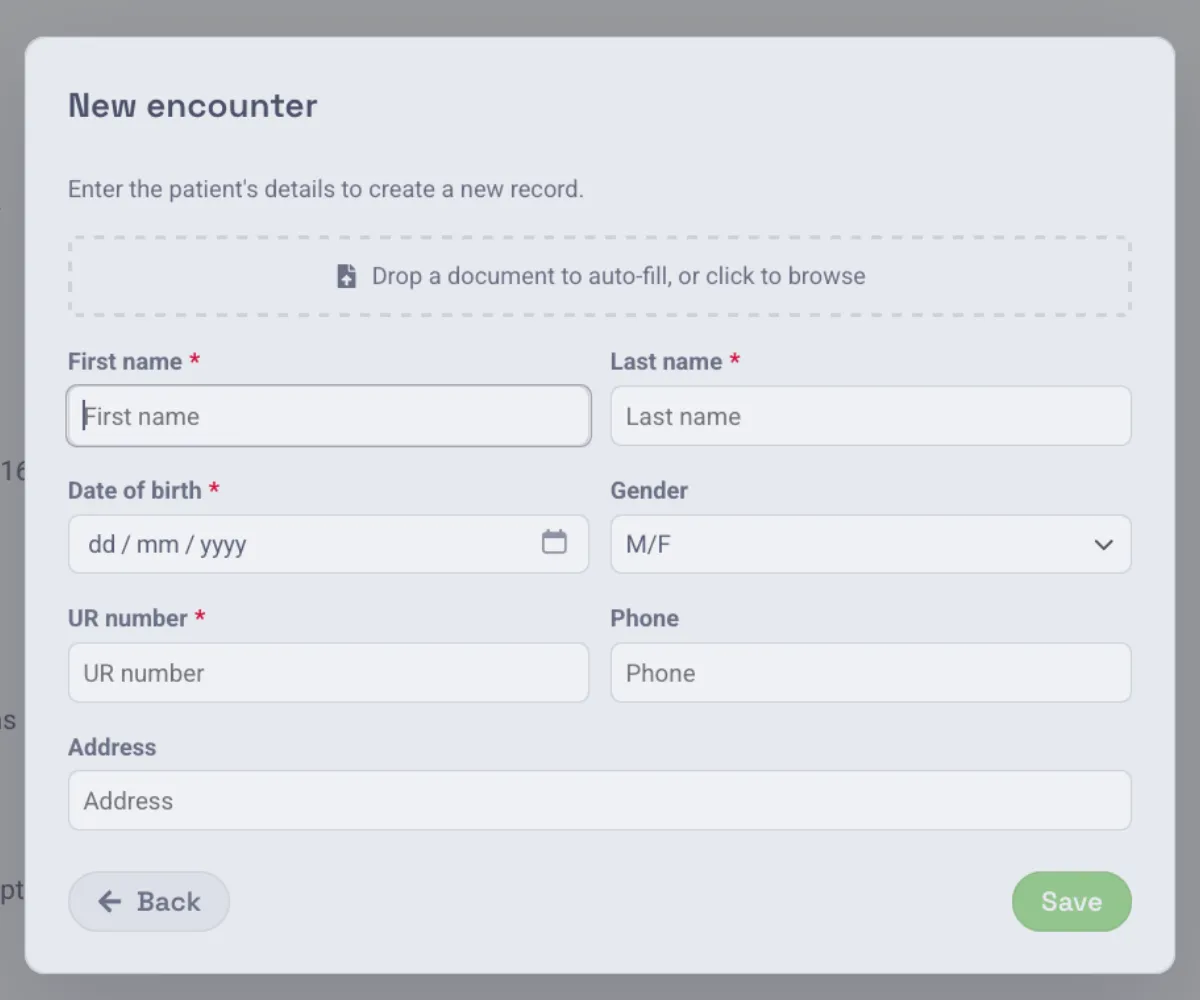
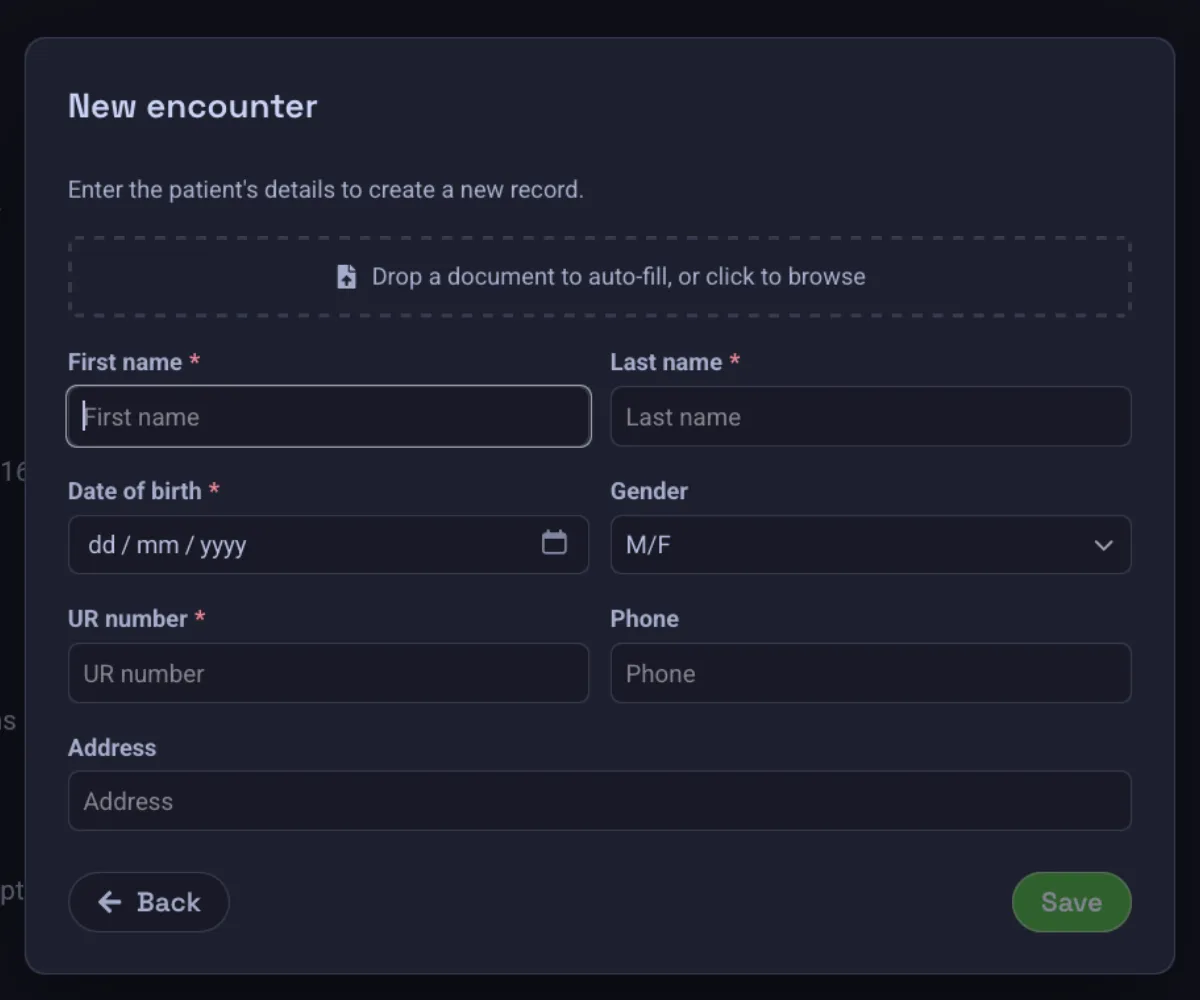
Auto-fill from a dropped document
You can drag and drop a document (PDF, image, or text file) onto the demographics form. Phlox extracts the demographic fields using the same processing pipeline as document chat:
- Text-layer extraction first (for digital-native PDFs),
- falling back to vision (if the model supports it), or
- OCR (Tesseract, Docker builds only) as a final fallback.
Review the extracted values before saving — AI extraction can make mistakes.
Ambient Scribe Consent
If Require patient consent for ambient scribing is enabled in Settings → Admin Settings → Policy, Phlox will prompt for explicit patient consent before starting any mode that records the consultation — an Ambient recording or a Live agent session.
- The consent prompt appears the first time you start the scribe for that patient.
- The consent state is remembered per patient, so you are not re-prompted on subsequent encounters.
- This is intended to support workflows where documented patient consent is required before recording.
Even with consent captured, you remain responsible for ensuring that making any recording is lawful in your jurisdiction. See Limitations & Warnings.
Switching Patients
If the current note or letter has unsaved changes when you switch to another patient in the workspace, Phlox asks you to confirm before discarding them. A running live agent session is stopped automatically on switch.