Flexible Template System
Phlox uses templates to structure clinical notes and correspondence. A template consists of fields, each with its own prompt, formatting rules, and persistence behaviour. There are separate template types for notes and letters (see Correspondence).
Managing Templates
Templates are managed in Settings → User Settings → Note Templates. You can:
- Create a new template from scratch.
- Generate from example — paste an example note and Phlox generates a matching template; review and adjust before saving.
- Edit any custom template in the split Editor / Preview.
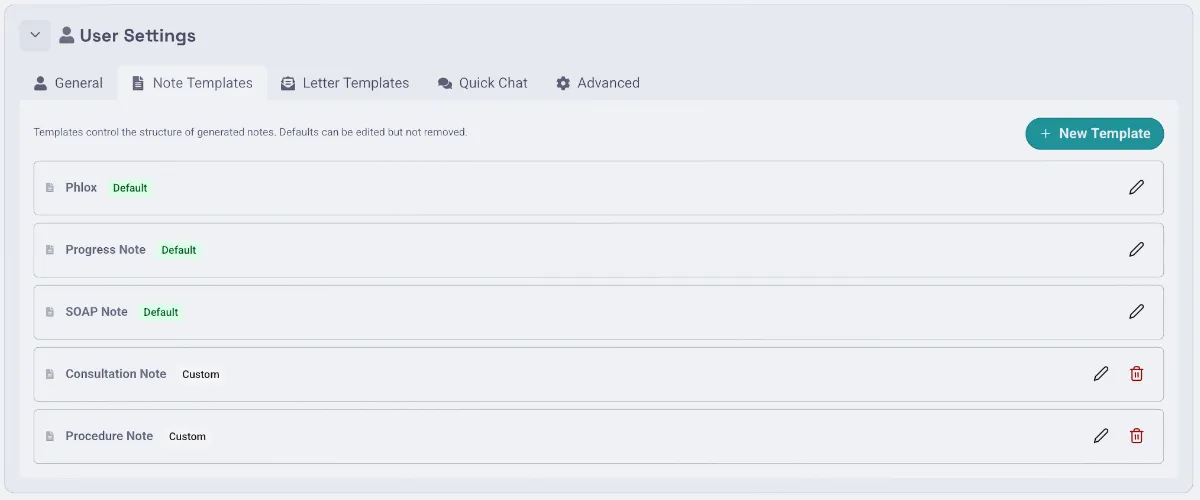
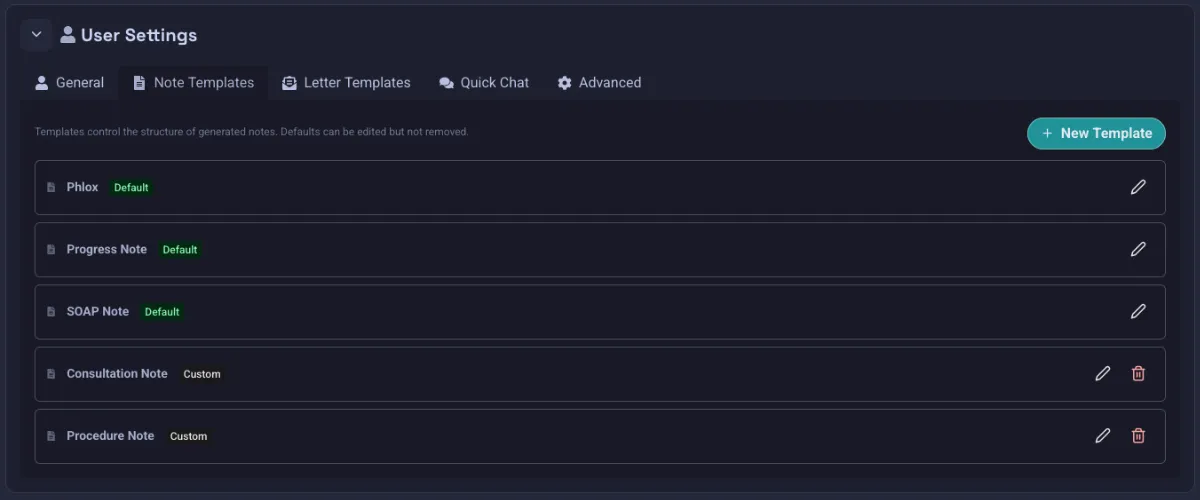
- Delete custom templates.
Phlox ships with a set of protected default templates (e.g.
phlox_*,soap_*,progress_*). Defaults can be used and selected but not deleted.
Template Families & Versioning
Behind the scenes, every template is a member of a family. A family is the base template plus all of its versions — updated defaults ship as new versions of the same family (keys like phlox_1, phlox_2, …), and versions compare numerically (phlox_10 is newer than phlox_9).
- Your forks outrank the defaults. When you customise a template, your fork belongs to the same family and takes precedence over every protected version of it — app updates never silently override your customisations.
- Historical encounters stay locked. A saved encounter keeps the exact template it was created with, even if newer versions have since replaced it.
- Returning patients upgrade within the family. A new encounter for a returning patient whose previous template is no longer active (e.g. you deleted your fork or a newer default shipped) automatically uses the newest member of that family — your fork first — and tells you with a toast. Brand-new encounters use your default template.
Changing your default template takes effect immediately everywhere.
Template Fields
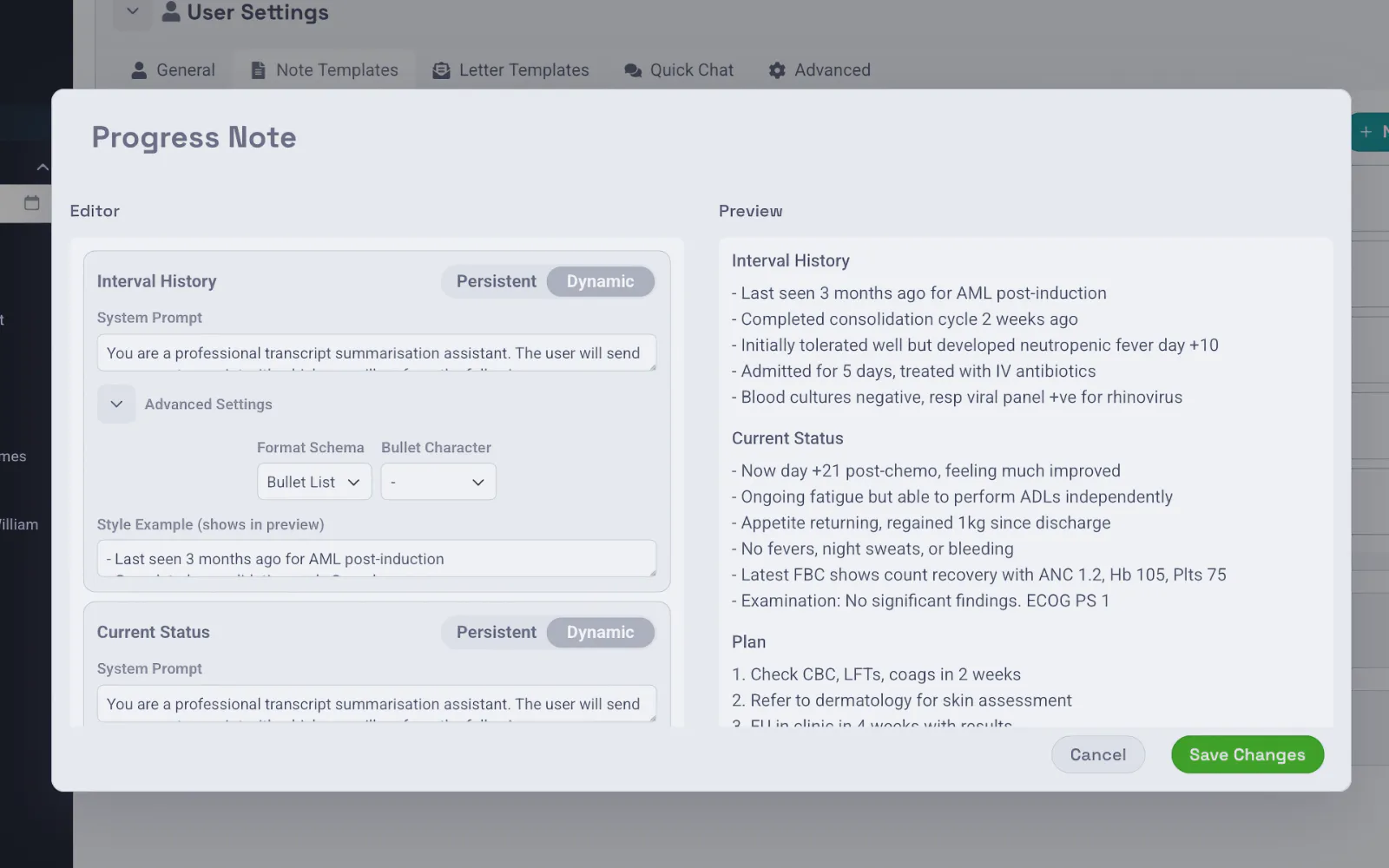
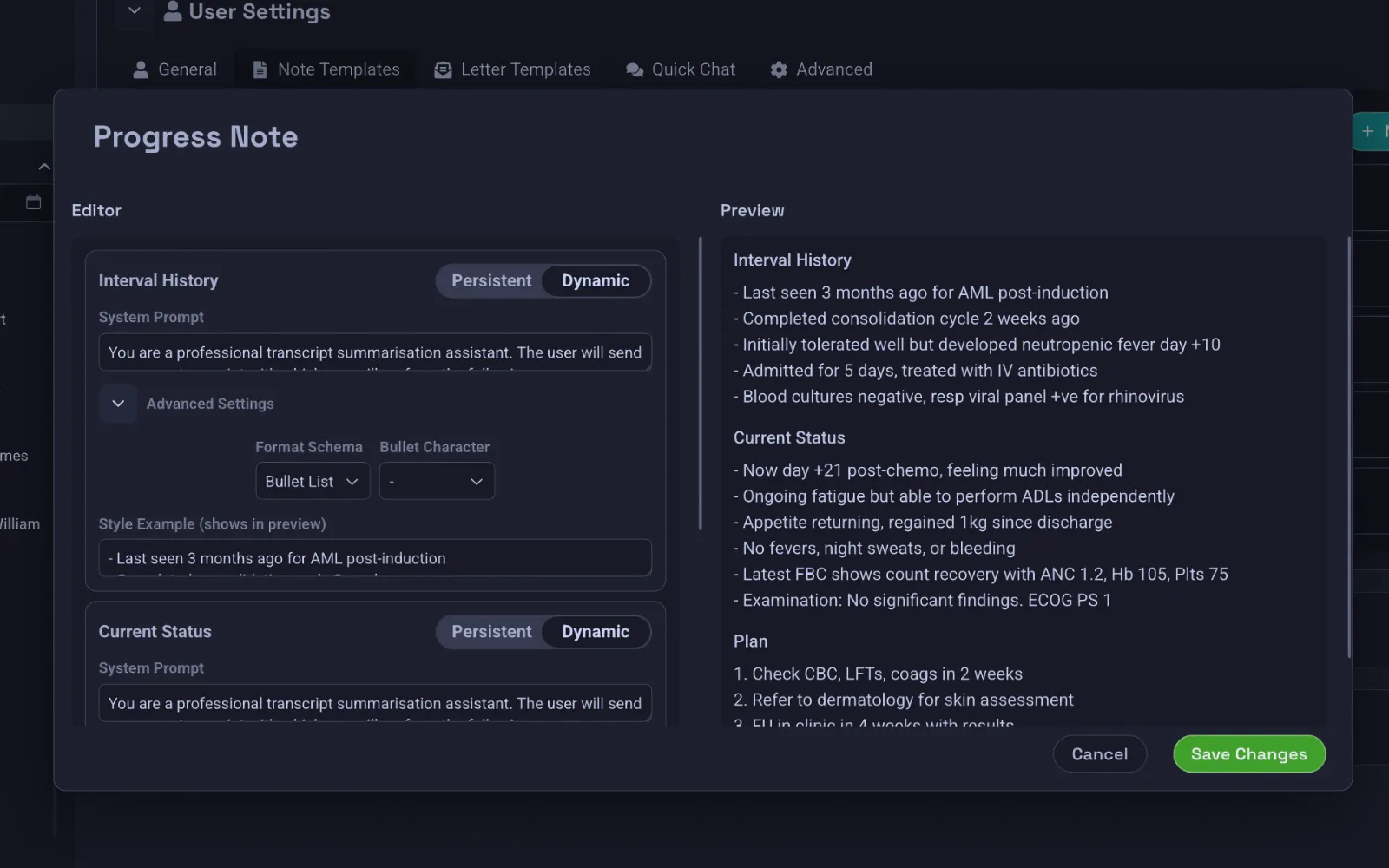
Each field is configured with:
- System prompt — guides the AI's output for that field.
- Format schema — Free Text, Bullet (with configurable bullet character), Numbered, or Narrative.
- Style example — an optional writing sample the LLM should match.
- Persistence — Persistent fields carry their value forward across encounters for the same patient (e.g. past medical history); Dynamic fields are regenerated each encounter (e.g. the assessment for today's visit). The Plan field is always Dynamic.
- Post-processing refinement rules.
Applying Templates
- Pick a template for the encounter (your default is pre-selected).
- When you switch templates for an existing patient, Phlox fetches that patient's history by UR number and pre-fills the persistent fields from previous notes.
- Generate, then review and edit the content.
Adaptive Refinement
Templates are also where Phlox's learning lives. Each persistent/dynamic field accumulates adaptive instructions that nudge future generations toward your style. These are derived automatically from your edits and managed under the hood (auto-consolidated per field) — see AI Features → Adaptive Refinement. They aren't shown in the UI.