PDF Form Templates
Phlox can fill PDF forms — either manually by drawing fields on a template, or automatically via the AI chat. This is useful for filling in referral letters, request forms, and other structured documents from encounter data.
PDF Form Templates are managed alongside your document collections on the Documents page (/rag), under the Form Templates tab.
Creating a Form Template
- Go to Documents → Form Templates and click Upload Template.
- Upload a PDF. The PDF opens in the field editor.
- Draw fields onto the PDF. Each field has one of four types:
- Text — free text (e.g. name, address)
- Checkbox — boolean toggle
- Date — date value
- Number — numeric value
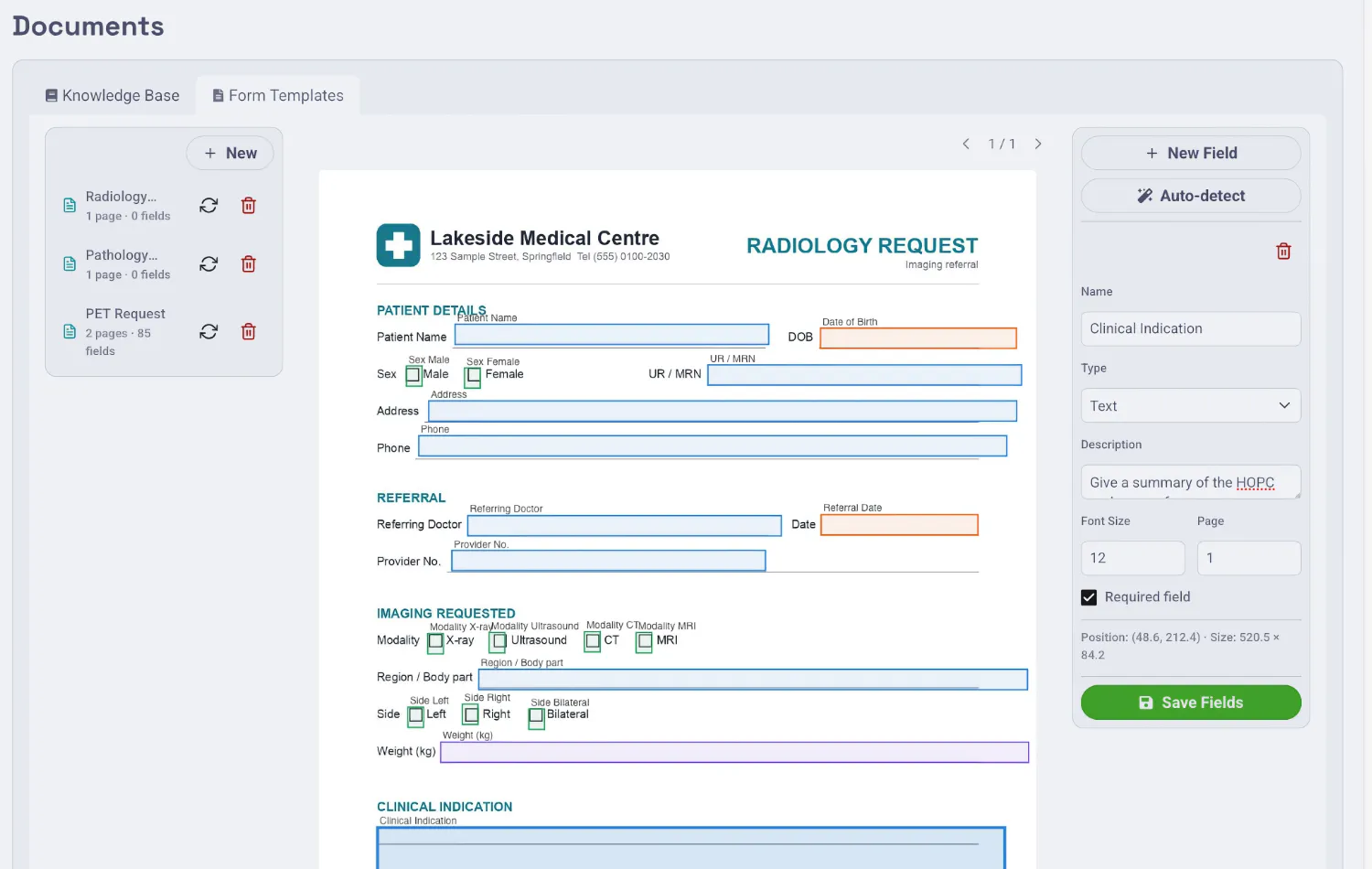
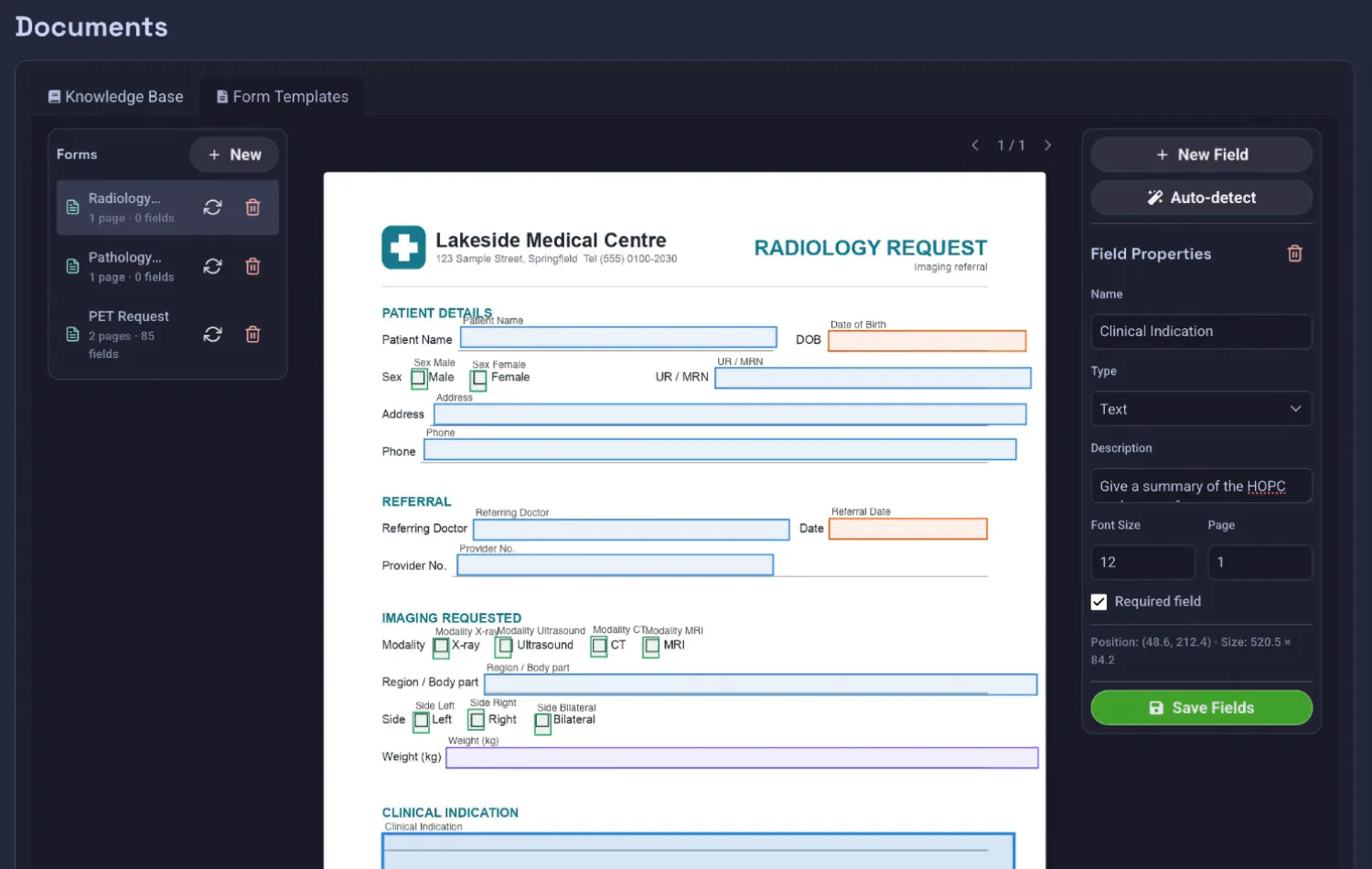
- Name each field so the AI can map encounter data to it. Field names should be descriptive (e.g.
patient_name,date_of_birth,referring_clinic). - Save the template.
While you edit, the builder renders a live WYSIWYG preview: each field shows its sample text exactly as it will print (same font metrics and shrink-to-fit behaviour as the final fill), and any field whose content overflows is outlined in red and flagged with a ⚠ next to its name. A compact field inventory alongside the page lets you jump to or delete any field.
Auto-detecting Fields
Click Auto-detect Fields and Phlox works in two passes:
- AcroForm first (no AI): pages that already contain PDF form widgets have their fields harvested directly from the PDF with exact geometry — precise, immediate, and model-free.
- Vision for the rest: pages without widgets are rendered and sent to the vision model — one request per page, in parallel — which identifies the fillable regions (input boxes, underlines, cells) rather than the printed labels. Detected regions land as fractional coordinates converted against each page's real dimensions.
You can then review and adjust the detected fields before saving.
Vision detection requires a vision-capable model. See Settings to check or probe vision support. AcroForm harvesting works with any configuration.
Replacing the Underlying PDF
You can replace a template's PDF without losing your field definitions (e.g. when a clinic sends an updated form). Use Replace PDF and select the new file; the existing field positions are preserved.
Filling a Form
There are two ways to fill a form:
1. AI-driven (via chat)
The primary flow is through the chat interface. When you ask the agent to fill a form (for example, "Fill the referral form for this patient using today's encounter"), the agent:
- Selects a matching form template via the
list_pdf_form_templatestool. - Extracts the relevant data from the encounter and produces a
form_fillartifact via thefill_pdf_formtool. - The chat displays a form-fill artifact card. Clicking it fills the PDF client-side, which you can then review, adjust, and download.
2. Manual
A manual fill modal is available from the Form Templates tab for ad-hoc fills, though the AI-driven flow is the intended path for everyday use. The modal includes a Preview button that renders the filled PDF pages exactly as they will download, so you can check the result before generating the file.
During a live agent session you can also ask for a form by voice ("fill the CDU referral form"); the agent stages the filled PDF under Prepared for review, where it can be downloaded directly.
Notes
- The PDF is rendered and filled entirely client-side using PDF.js — no encounter data is sent to a third party during the fill step itself.
- Filled PDFs are not stored automatically; download them once generated.